Player guide
How to play on RetroDeck
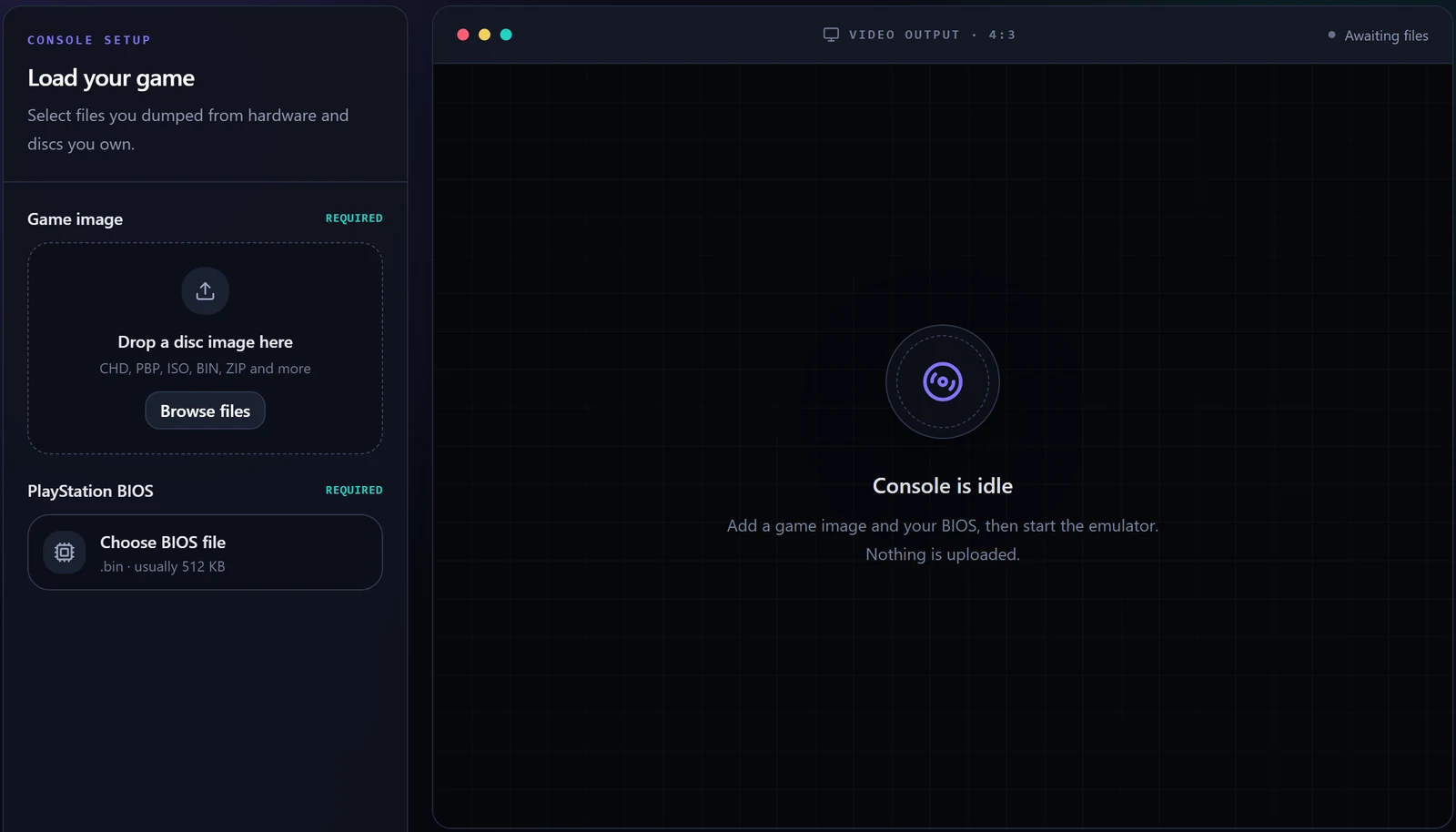
RetroDeck is a PlayStation console that runs inside your browser. You pick a game disc image and a BIOS file from your own device, press Start, and play. Nothing is uploaded: the files are handed straight to the emulator on your computer or phone.
1. What you need
- A disc image of a game you own. CHD and PBP are the easiest: one file, complete. ISO, BIN, CUE, IMG, MDF, TOC, CBN, M3U and CCD are accepted too. A game dumped as a CUE with several BIN tracks must be put in one ZIP (or 7Z) so the files stay together.
- A PlayStation BIOS file dumped from your own console: a
.binof 512 KB. The site includes no games and no BIOS. - A current browser. Chrome or Edge on a computer give the best speed; Firefox and Safari work. On phones, Chrome or Safari. The first launch downloads the emulator core once and can take a moment.
2. Load and start
- Under Game image, drop the disc image on the dashed box or press Browse files.
- Under PlayStation BIOS, press Choose BIOS file and pick your
.bin. - Press Start emulator. The screen shows the BIOS logo, then the game boots exactly as on the console.
- If the game does not appear after a minute, check the format table below and the BIOS region; a PAL game with an NTSC BIOS (or the reverse) may refuse to start.
3. Controls
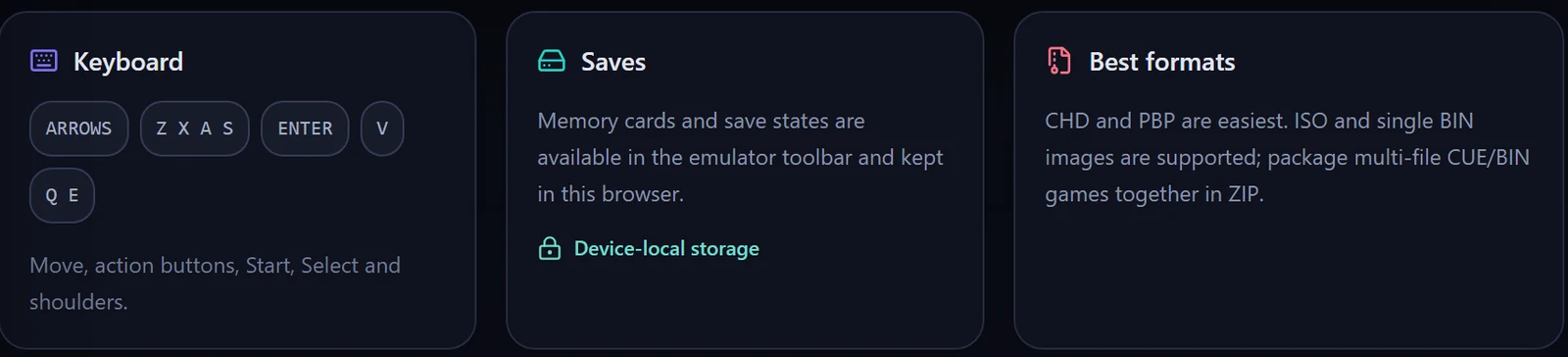
Keyboard
↑ ↓ ← →move (D-pad).ZXASare the four action buttons (cross, circle, square, triangle in the emulator’s default layout).EnterStart,VSelect,QandEthe shoulder buttons.- Click the game picture once so the keyboard goes to the emulator. To change any key, open the emulator toolbar (move the mouse over the picture), press the gear and choose Control Settings.
Gamepad
Plug in a USB controller or pair a Bluetooth one, then press a button on it. The setup panel changes from “No gamepad detected” to the controller’s name, and the emulator maps a standard layout automatically. Remap it in the same Control Settings screen.
Touch
On a phone or tablet an on-screen controller appears over the picture. Turn the device sideways and use the toolbar’s fullscreen button for the biggest view.
4. Saves
- Memory cards work as on the real console: save inside the game and the card is kept in this browser’s storage.
- Save states freeze the whole game at any moment. Use the toolbar’s save-state and load-state buttons; states are also kept in the browser.
- Both live only in this browser on this device. Clearing site data, a private window or a different browser starts empty. The toolbar can export a save state to a file and import it later; do that for anything you care about.
5. Formats
| Format | How to load it |
|---|---|
| CHD | One file. Recommended: small and keeps every track. |
| PBP | One file. Multi-disc PBPs switch discs from the emulator menu. |
| CUE + BIN | Zip the CUE and all its BIN files together; load the ZIP. |
| ISO, IMG, single BIN | Load directly. Games with CD audio tracks may play silently. |
| MDF, TOC, CBN, CCD, M3U | Accepted; put companion files in one ZIP where the format has them. |
6. When something goes wrong
- Start stays grey. Both a game image and a BIOS are required; the panel marks which one is missing.
- Black screen or “console is idle” after Start. Usually the BIOS: it must be the plain 512 KB
.bin, not a ZIP or a renamed file. Then try a CHD or PBP of the same game. - Slow or stuttering. Close other tabs, use Chrome or Edge on a computer, and avoid battery-saver mode. Nintendo-style emulation is light; PlayStation needs a reasonable device.
- No sound. Browsers only start audio after a click; click the picture. Check the toolbar’s volume.
- The keyboard types into the page instead of the game. Click the game picture to focus it.
7. Your files, your responsibility
RetroDeck is an interface for the open-source EmulatorJS PlayStation core (PCSX-ReARMed). It contains no games, BIOS files or other copyrighted console assets, and it has no upload endpoint. Use only files you are legally entitled to use. Normal server logs record page requests, not your files.
Want to play a two-player game with a friend somewhere else? That is RetroDeck Live, where one console runs on a server and two browsers share it.